
Syncing Assessment Data to Moodle
Enterprise feature. Moodle integration is available to enterprise PaperScorer customers.
This article walks through syncing assessment results to Moodle, explains what data is pushed, and covers re-running and troubleshooting syncs. It assumes your Moodle account is already connected — if it isn’t, see Connecting Your Account to Moodle first.
NOTE: PaperScorer syncs to an existing Moodle assignment. Create the assignment activity in your Moodle course first, then select it during the sync. Unlike some integrations, PaperScorer does not create the Moodle assignment for you.
Before you start
- Your Moodle account is connected to PaperScorer.
- The assessment has scanned student responses with scores.
- The students you want to sync are enrolled in the Moodle course, and their Moodle email matches their email in PaperScorer — that email is how PaperScorer matches each student to their Moodle user.
- An Assignment activity already exists in the Moodle course to receive the grades.
Running a sync
- From your dashboard, open Assessments and find the assessment you want to sync.
-
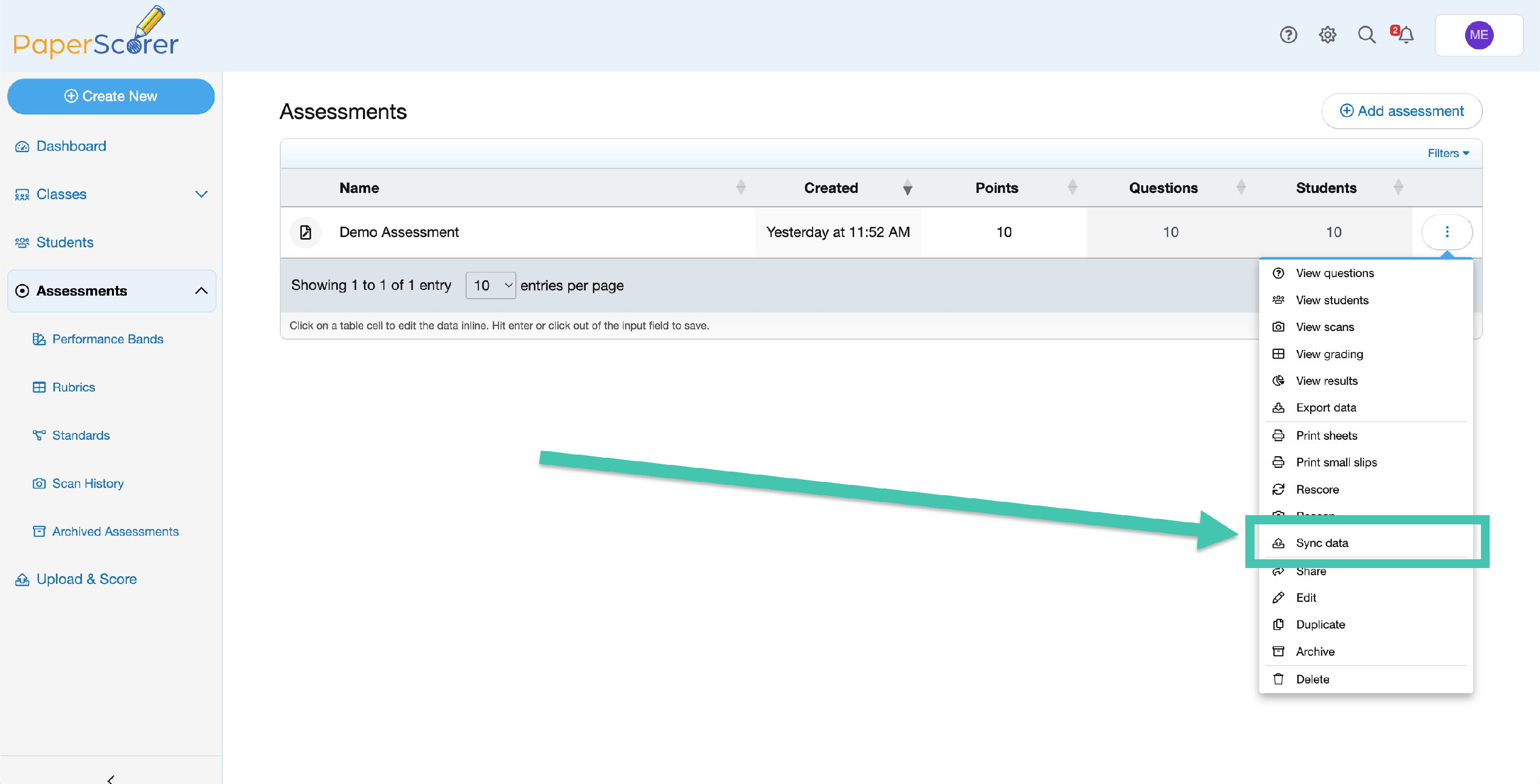
Open the assessment’s action menu and choose Sync data. (This option appears once the assessment has scanned responses.)
-
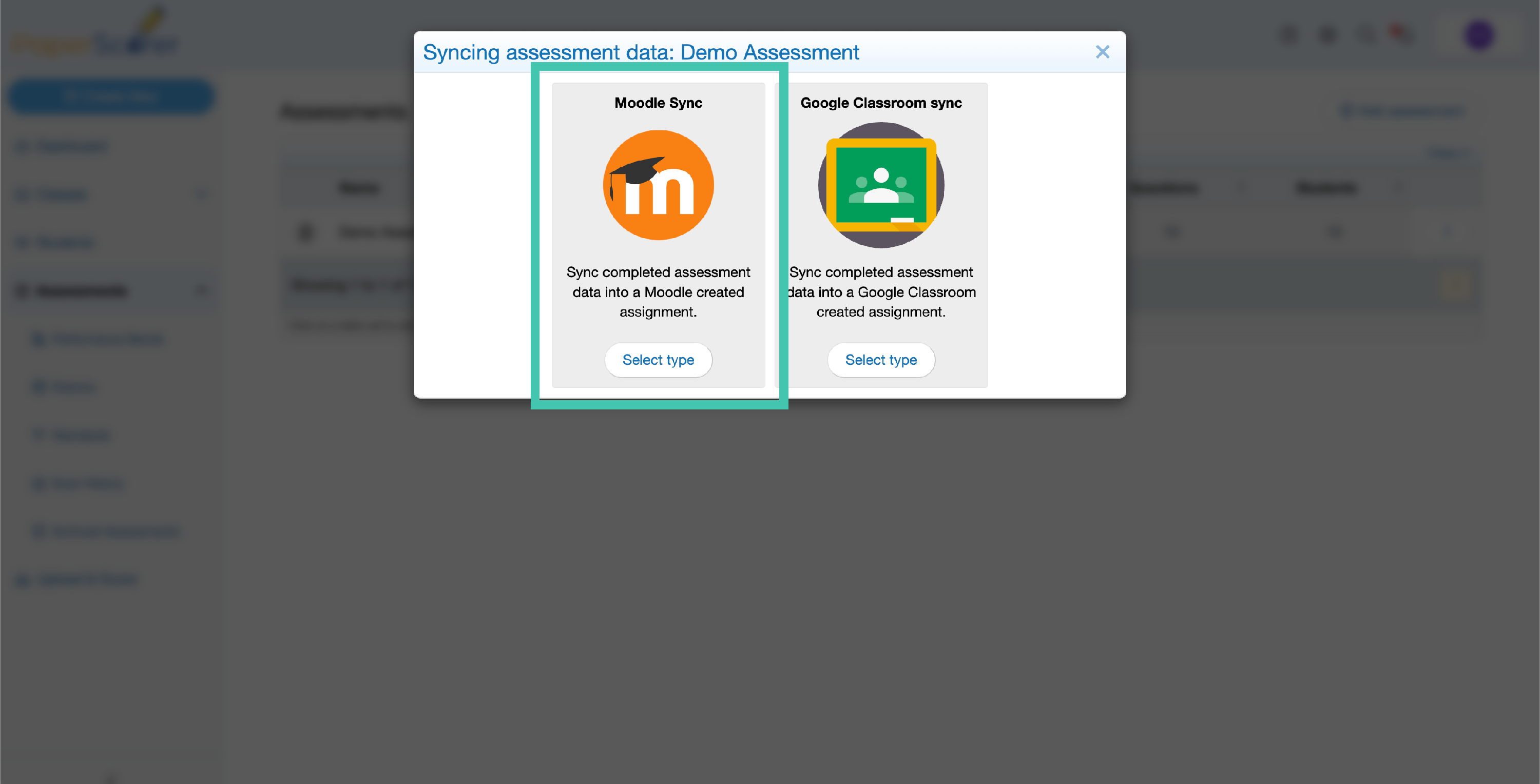
In the sync window, choose Moodle.
-
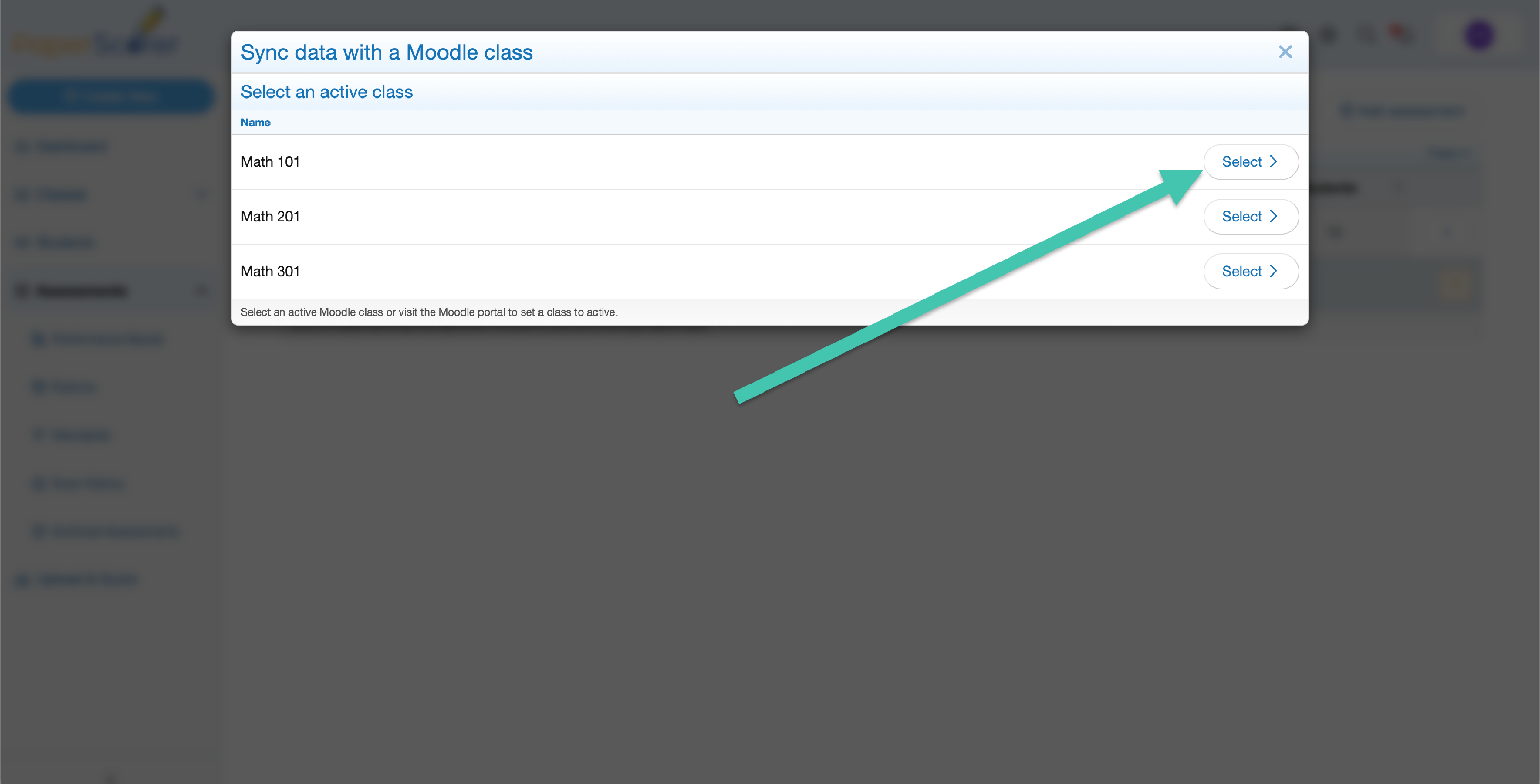
Select the Moodle class to sync to. The list shows the courses you are enrolled in on Moodle.
-
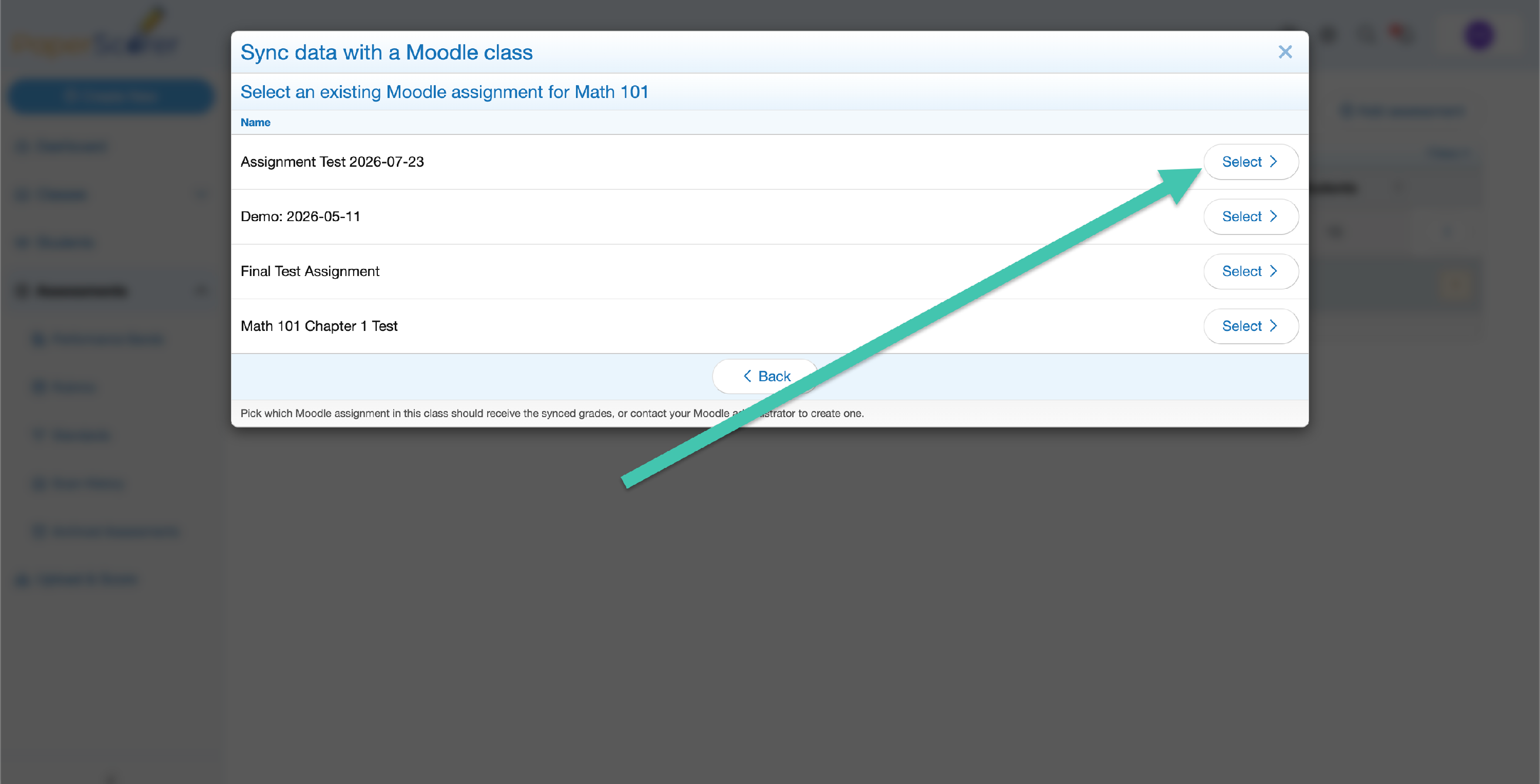
Select the assignment to sync to. The list shows the existing Assignment activities in that Moodle course.
-
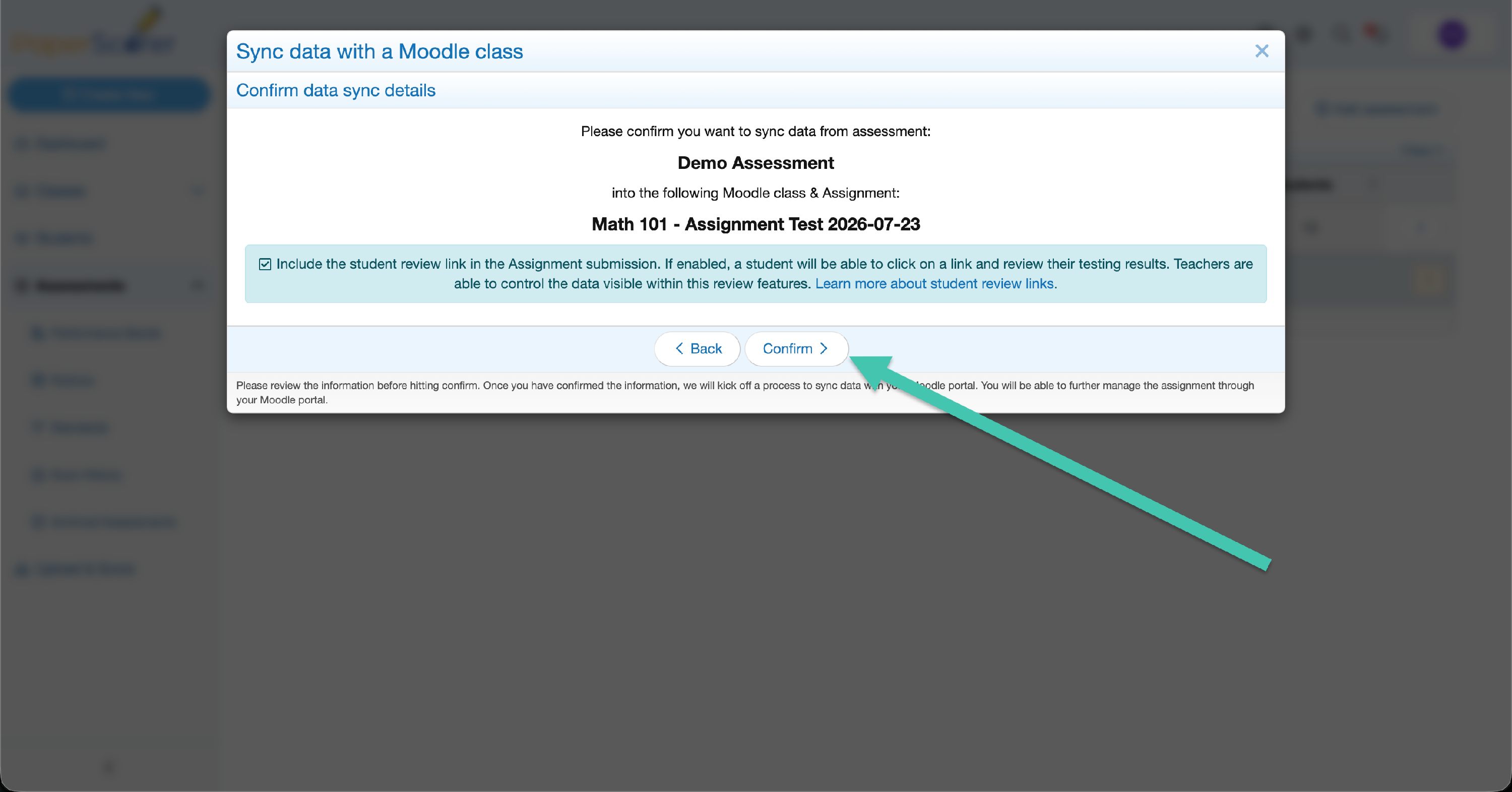
Review the confirmation page showing the assessment, class, and assignment, then click Continue to start the sync. Progress is shown as it runs, and you’ll get an in-app alert when it finishes.
What gets synced
For each matched student, PaperScorer writes to the selected Moodle assignment:
- The final assessment score, recorded as the student’s grade on the assignment.
- A feedback comment summarizing the assessment, added to the student’s assignment feedback in Moodle.
- A review link, included in that feedback comment, if student review links are enabled on the assessment. The link opens the student’s PaperScorer result page.
NOTE: Only the final assessment score is pushed. Per-question grades and rubric scores are not currently included in the sync.
A student is only synced if PaperScorer can match them to a user enrolled in the Moodle course by email. Students who don’t match are skipped and listed in the sync results.
Reviewing sync results
Each assessment keeps a record of its syncs. Open the assessment’s Syncs tab to see past sync jobs, how many students succeeded, and which ones were skipped or failed along with the reason.

Re-syncing
You can run the sync again at any time — for example, after rescanning or regrading. Re-syncing updates each student’s grade and feedback on the same Moodle assignment to the latest values rather than creating a duplicate. Just start a new sync and select the same class and assignment.
Troubleshooting failed syncs
- A student was skipped. PaperScorer couldn’t match them to a Moodle user in the course. Confirm the student is enrolled in the Moodle course and that their Moodle email matches their PaperScorer email.
- Your class isn’t in the list. The class list shows the Moodle courses you are enrolled in. If a course is missing, confirm you are enrolled in it on Moodle.
- The assignment isn’t in the list. The assignment must be an Assignment activity in the Moodle course. Other activity types (such as quizzes) won’t appear. Create an Assignment activity in Moodle, then run the sync again.
- The grade push failed. Moodle rejected the grade write. This usually means the connection’s service account is missing a grading permission, or the assignment isn’t set up to be graded. Contact your administrator, who can review the Moodle Administration Guide.
If problems persist, contact our support team with the assessment name and the time you ran the sync.