
Enterprise LMS and Feature Settings
This article is for enterprise PaperScorer administrators. It covers the organization-wide settings on the Manage Settings page — the feature toggles that control what your teachers can do, and the district logo printed on question papers.
Quick Reference
| Setting | What it controls |
|---|---|
| Require Two-Factor Authentication | Forces every user in your organization to set up 2FA before using PaperScorer. |
| Enable Beta Features | Lets your users access in-development features that may change or be removed. |
| Enable Danger Zone | Unlocks destructive admin actions (bulk data removal, account resets) that can’t be undone. |
| Enable Google Classroom | Lets teachers import classes and students from Google Classroom. |
| Enable Add Class | Lets teachers create local classes manually. |
| Enable Add Student | Lets teachers add students manually. |
| Enable Student Review Links | Lets teachers give students individual review links to their results. |
| Question paper logo | A district logo printed at the top of the question papers your teachers generate. |
NOTE: The feature toggles save the moment you flip them — there’s no separate save button. The question paper logo is the one exception; it has its own Save button.
Finding These Settings
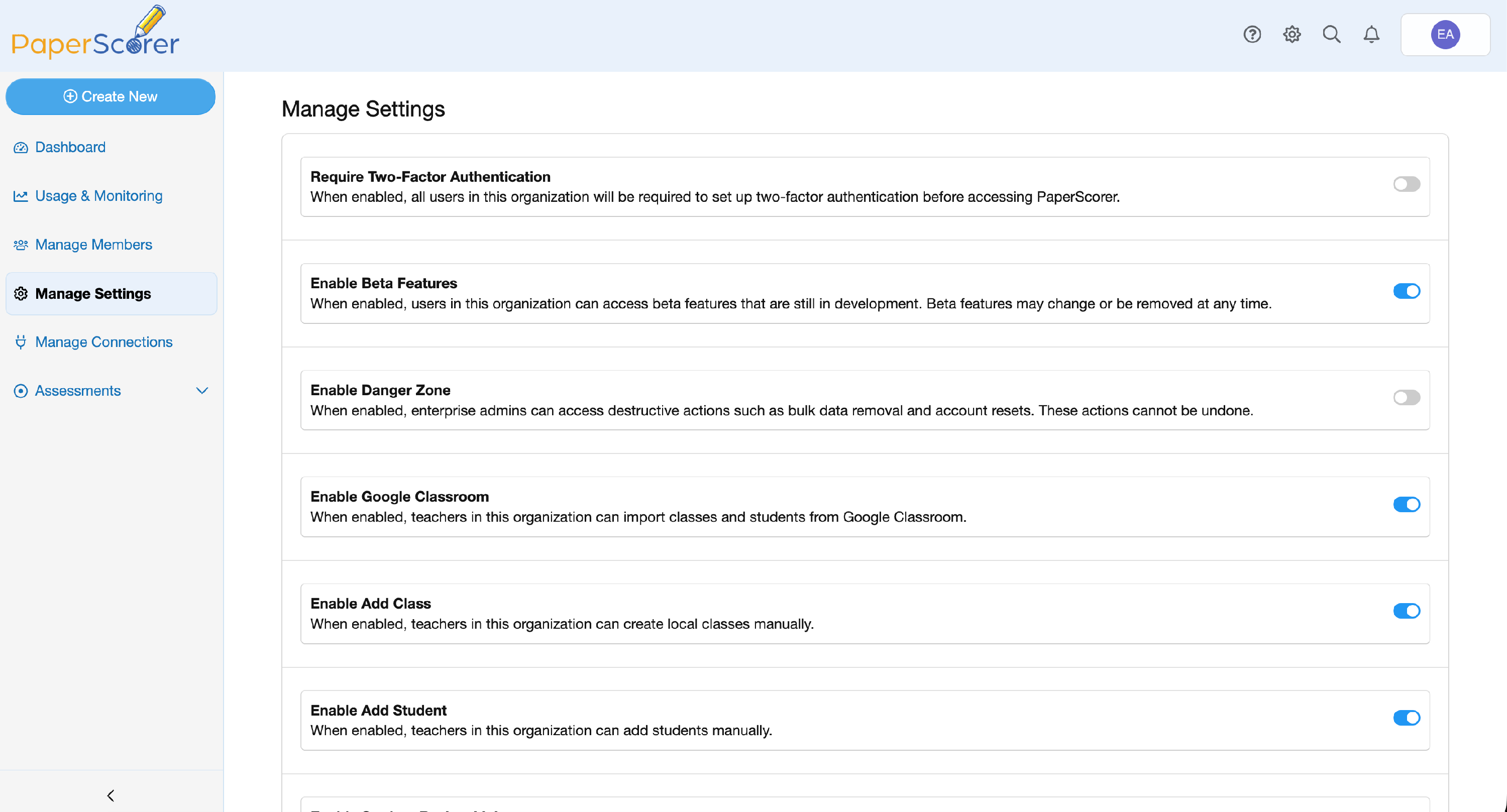
Sign in as an enterprise administrator and open Manage Settings for your organization. Each feature is a switch you turn on or off, and the question paper logo sits at the bottom of the page.
Feature Toggles
Require Two-Factor Authentication — when enabled, all users in this organization must set up two-factor authentication before accessing PaperScorer.
Enable Beta Features — when enabled, users in this organization can access beta features that are still in development. Beta features may change or be removed at any time.
Enable Danger Zone — when enabled, enterprise admins can access destructive actions such as bulk data removal and account resets. These actions cannot be undone, so leave this off unless you’re actively performing one.
Enable Google Classroom — when enabled, teachers in this organization can import classes and students from Google Classroom.
Enable Add Class — when enabled, teachers can create local classes manually. Turn this off if teachers should only use rostered classes imported from your LMS.
Enable Add Student — when enabled, teachers can add students manually. Turn this off if students should come only from your LMS or SIS rosters.
Enable Student Review Links — when enabled, teachers can configure student review links on their assessments, letting students view their individual results. When disabled, the review link options are hidden, and any review link a student opens shows a Review Not Available page. See Student Review Links.
Question Paper Logo
Set a logo to print at the top of the question papers your teachers generate for this organization. You have two ways to provide it:
- Paste a public
httpsimage URL (PNG, JPG, GIF, or WebP) — PaperScorer fetches and hosts its own copy. - Or upload an image instead. If you provide both, the uploaded file is used.
Click Save to apply the logo, or Remove logo to clear it.
NOTE: A teacher can override the district logo when they print, and can set their own default under Account → Preferences → Question paper logo. See Printing a Question Paper.