
Changing a Question Answer
This article walks through manually overriding a student’s recorded answer on a scanned sheet — useful when the engine misread a bubble, the student bubbled too lightly to register, or there’s any other reason you need the system to score against a different answer than what was captured from the scan.
This is different from editing the assessment’s answer key. Editing the key changes the correct answer for every student who took the assessment. Manually overriding a student’s answer only changes what was recorded for that one student on that one question.
NOTE: When you edit the assessment’s answer or choice text in the question manager, that text is authored in a rich-text editor and can include images and equations. See Adding Images and Equations to Question and Answer Text for details.
When to Use This
Common reasons to manually change a recorded answer:
- The engine misread a bubble — e.g. captured B when the student clearly filled A.
- The student filled too lightly for the engine to detect — the bubble shows partially marked but the engine recorded nothing.
- The student crossed out an answer and re-bubbled, and you want to honor the corrected mark over the original.
- You want to give credit for an answer that’s mathematically equivalent but wasn’t marked the way the system expected (e.g.
0.5on a numeric response when the key was.5).
Changing an Answer in the Grading View
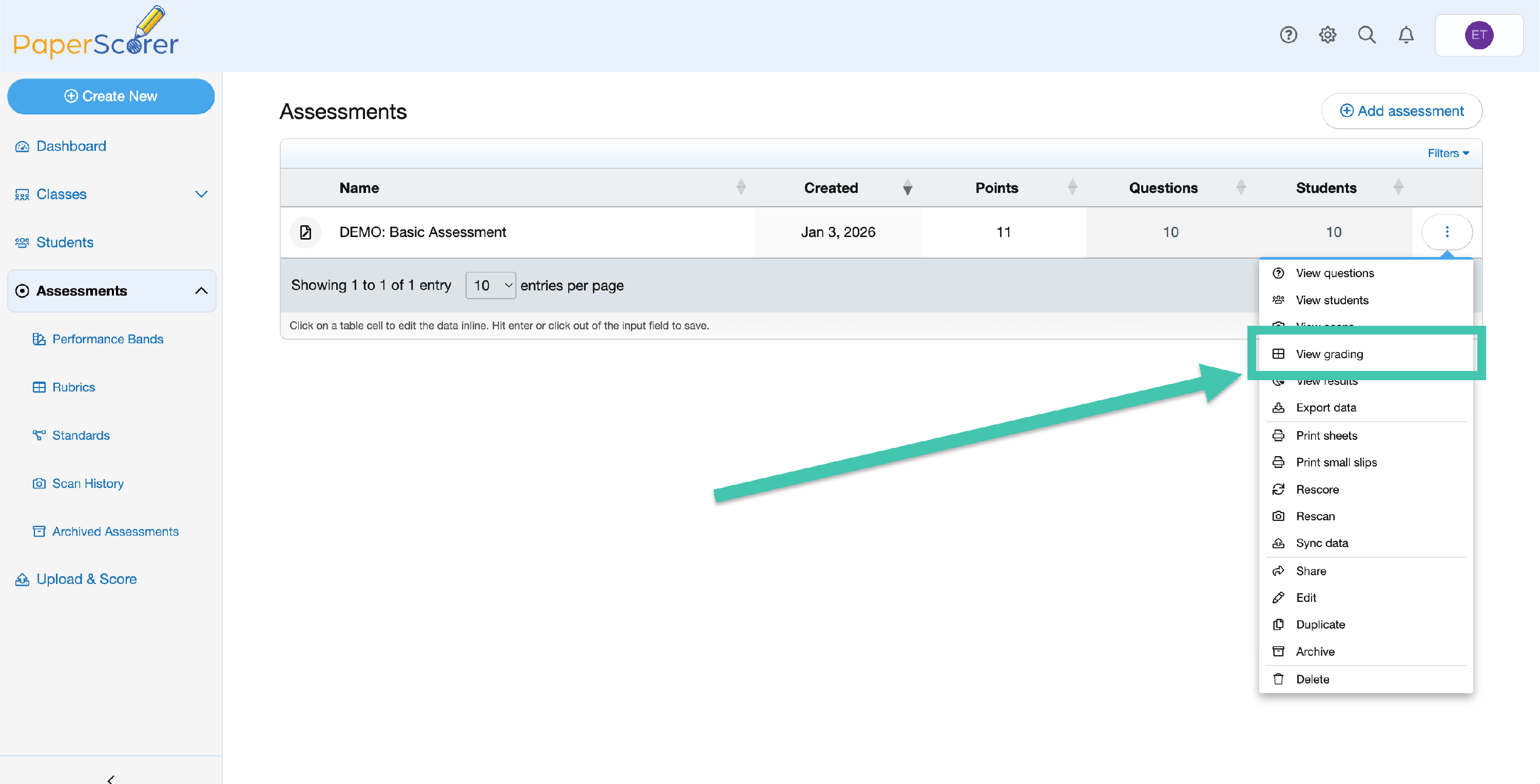
From the dashboard, click the Assessments main-navigation option, find the assessment, open its action menu, and select View grading.
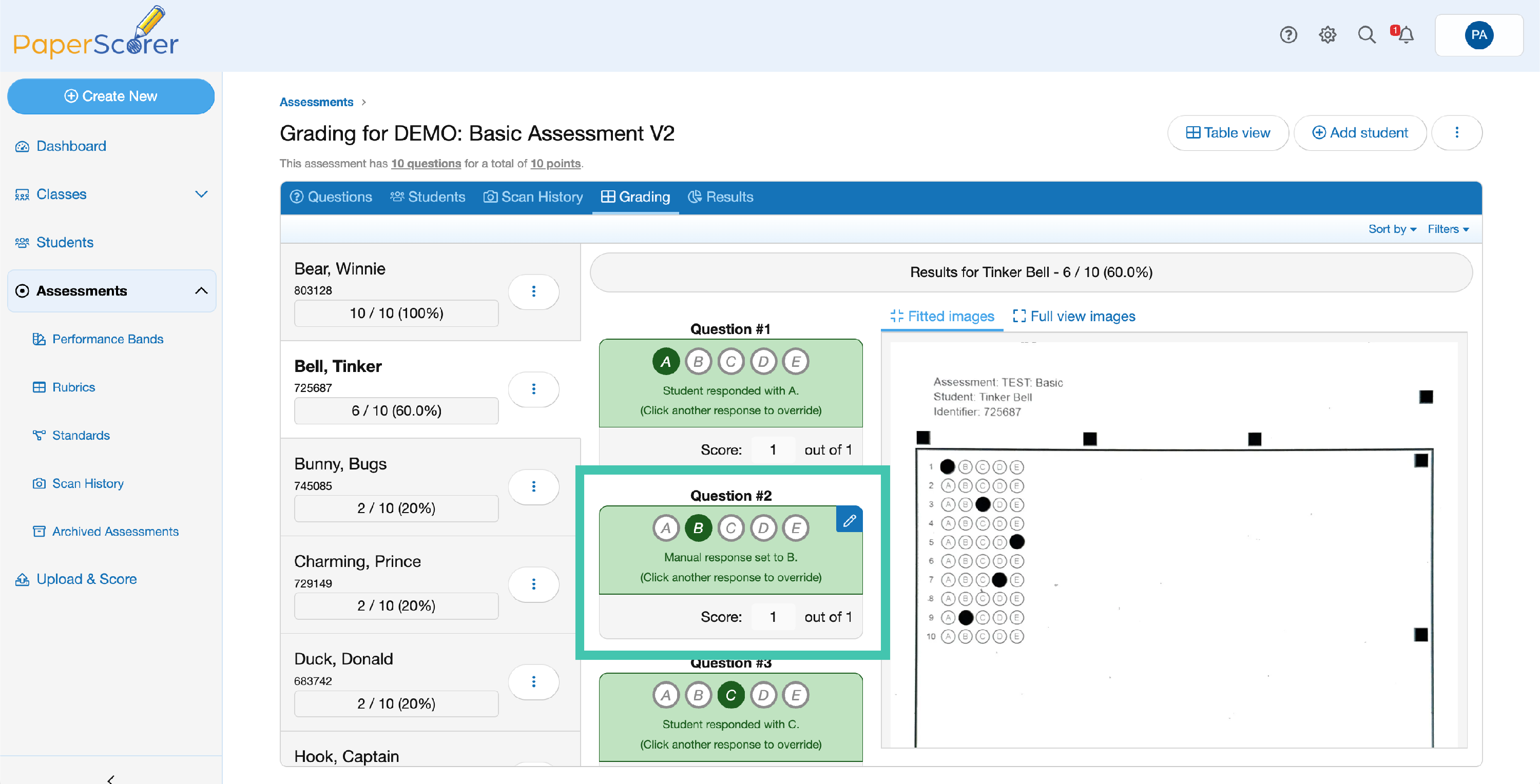
The grading view opens to a list of students on one side. Click a student to open their detail pane, which shows the scanned sheet alongside each question’s captured response. To change an answer:
- Click the student whose answer you want to correct to open their detail pane.
- Find the question you want to change. For a multiple-choice question, click the correct answer bubble; for a numeric question, type the value in the box.
- The student’s score recalculates automatically, and the question is marked to show the answer was manually overridden.
How Manual Overrides Are Tracked
PaperScorer keeps both pieces of information on the record:
- The original captured response — what the engine actually read from the scanned sheet.
- The manual override value — what you entered, used for scoring.
The override is the value used for the student’s score and in any reports. The original capture stays in the record so you can see what the engine read versus what you corrected it to. A small visual indicator (icon or label) marks any question that has a manual override applied.
Frequently Asked Questions
Can I revert a manual override?
Yes. Open the same input you used to set the override and clear it (or set it back to the originally captured value). The score recalculates against the original capture, and the override marker is removed.
Does the student see the override on their student review link?
The student review link shows the response that was used for scoring — so they’ll see the overridden answer, not the original capture. If you don’t want students to see the override applied, disable the “Enable student answer” option on the review-link settings.
Does changing an answer affect my LMS sync?
Yes. The next time you re-sync the assessment to an LMS, the updated score is pushed. See Google Classroom, Canvas, or Brightspace sync articles for re-sync details.
Can I bulk-correct the same question for many students at once?
Not as a single bulk action. If the engine misread the same question across many students, the more efficient fix is usually re-scanning the affected sheets at higher quality — see Ideal Scanner Settings. If re-scanning isn’t practical, correct the answers one at a time from the grading view.
What if I want every student to get credit for a question I now realize was bad?
You have two options. To give credit without changing the question, open the grading view’s Table View, click the question’s column header, and choose Give score full credit in the mass-scoring overlay (which also offers Mass fill score and Remove all manual scores) — this applies to every student in the current filter. To change the question for everyone instead, edit the question itself or set its point value to zero. See Manage Assessment Questions.